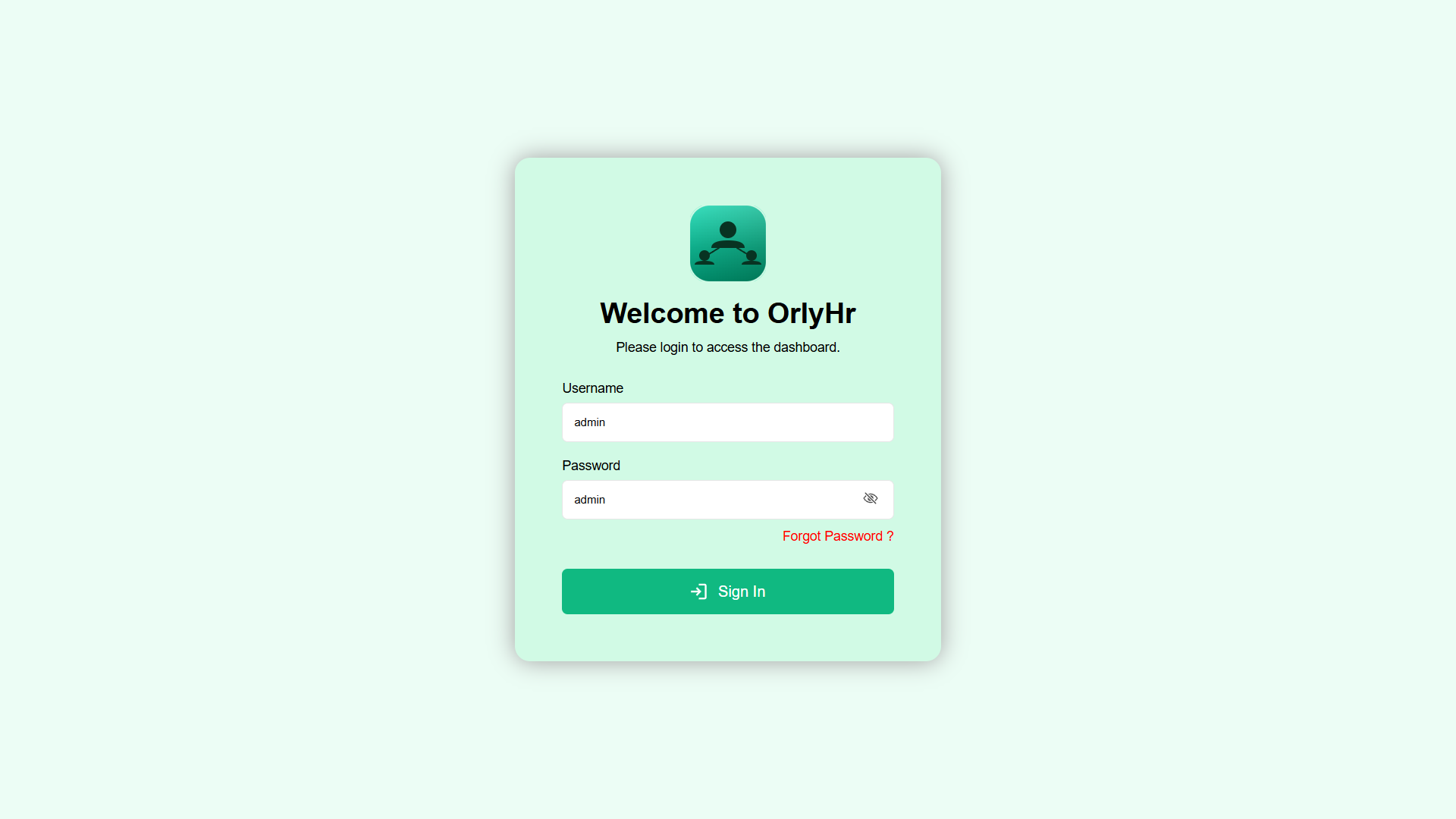
Get started with OrlyHR
From sign-up to a fully running HR platform in under 10 minutes. Follow each step below — no technical knowledge needed.
Create your account
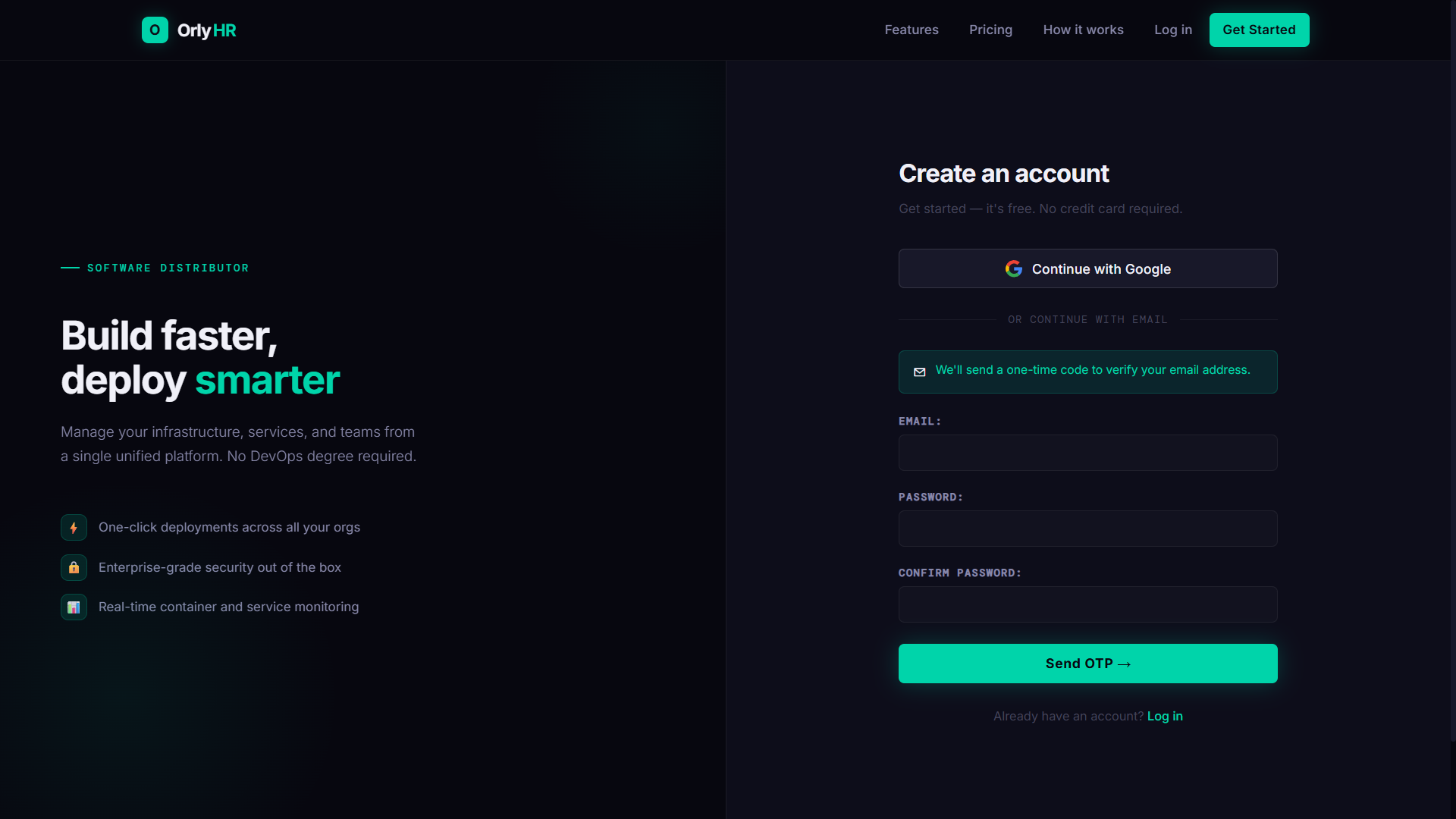
Visit OrlyHR and click Get Started. You can sign up instantly with Google, or use your email. If you use email, enter your address and password — we'll send a one-time code (OTP) to verify your email before continuing.
Create your organization
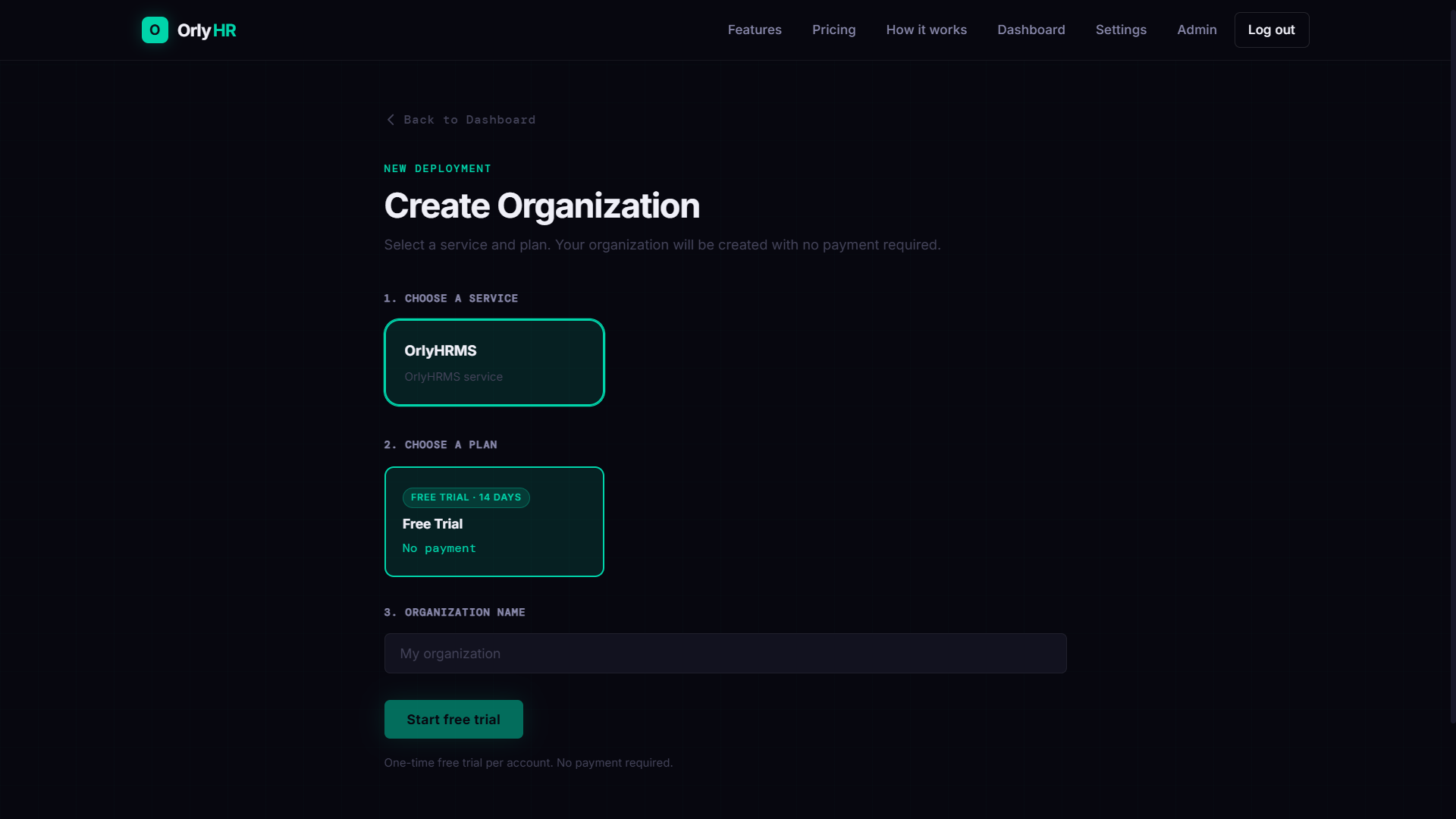
Once logged in, you'll be taken to the Create Organization page. There are three things to fill in:
- Choose a service — select OrlyHRMS (the only option, pre-selected).
- Choose a plan — select Free Trial · 14 days · No payment.
- Organization name — type a name for your company or team (e.g. "Acme Corp").
Click Start free trial. No credit card is required — this is completely free.
Wait while your platform deploys
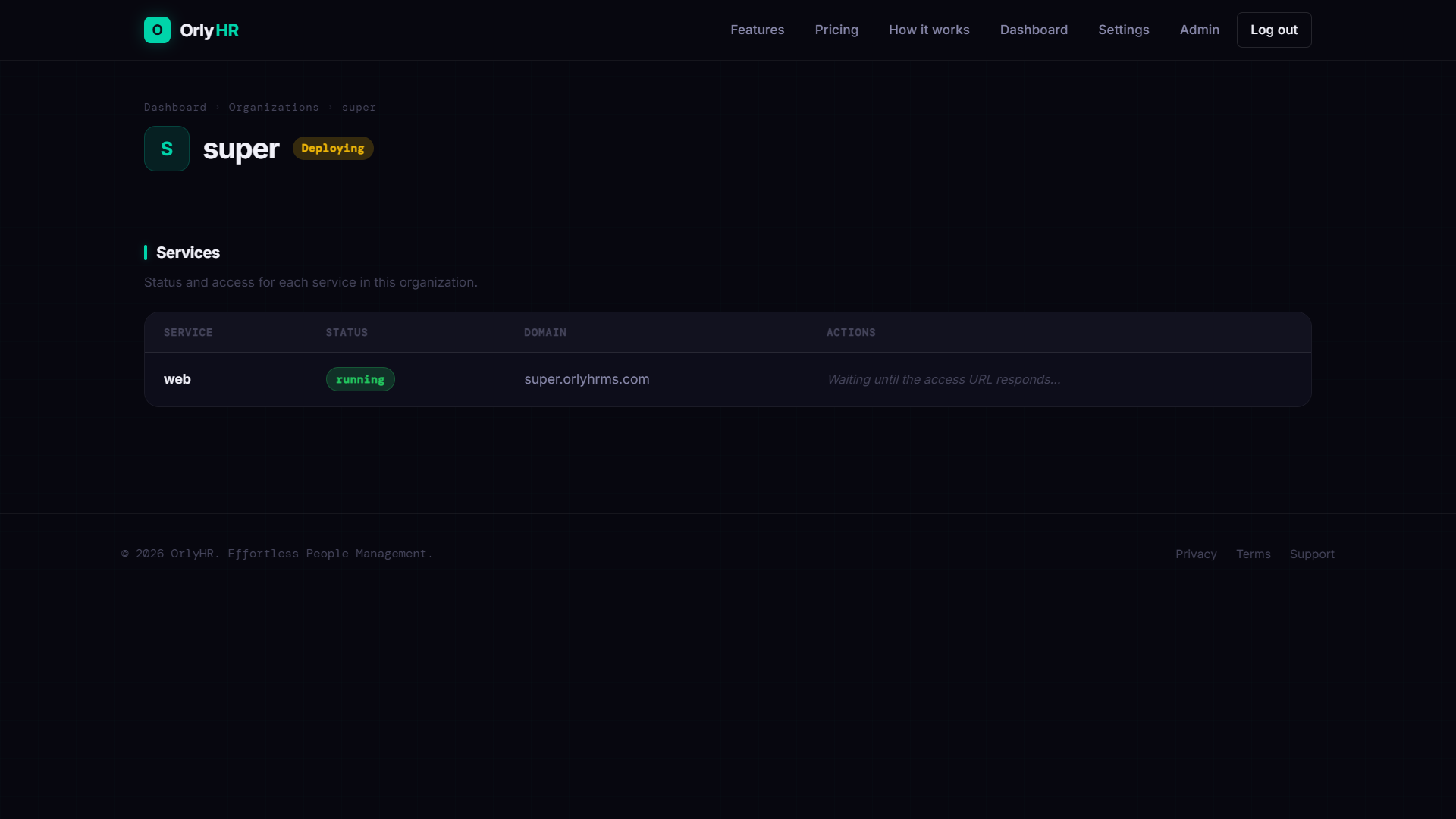
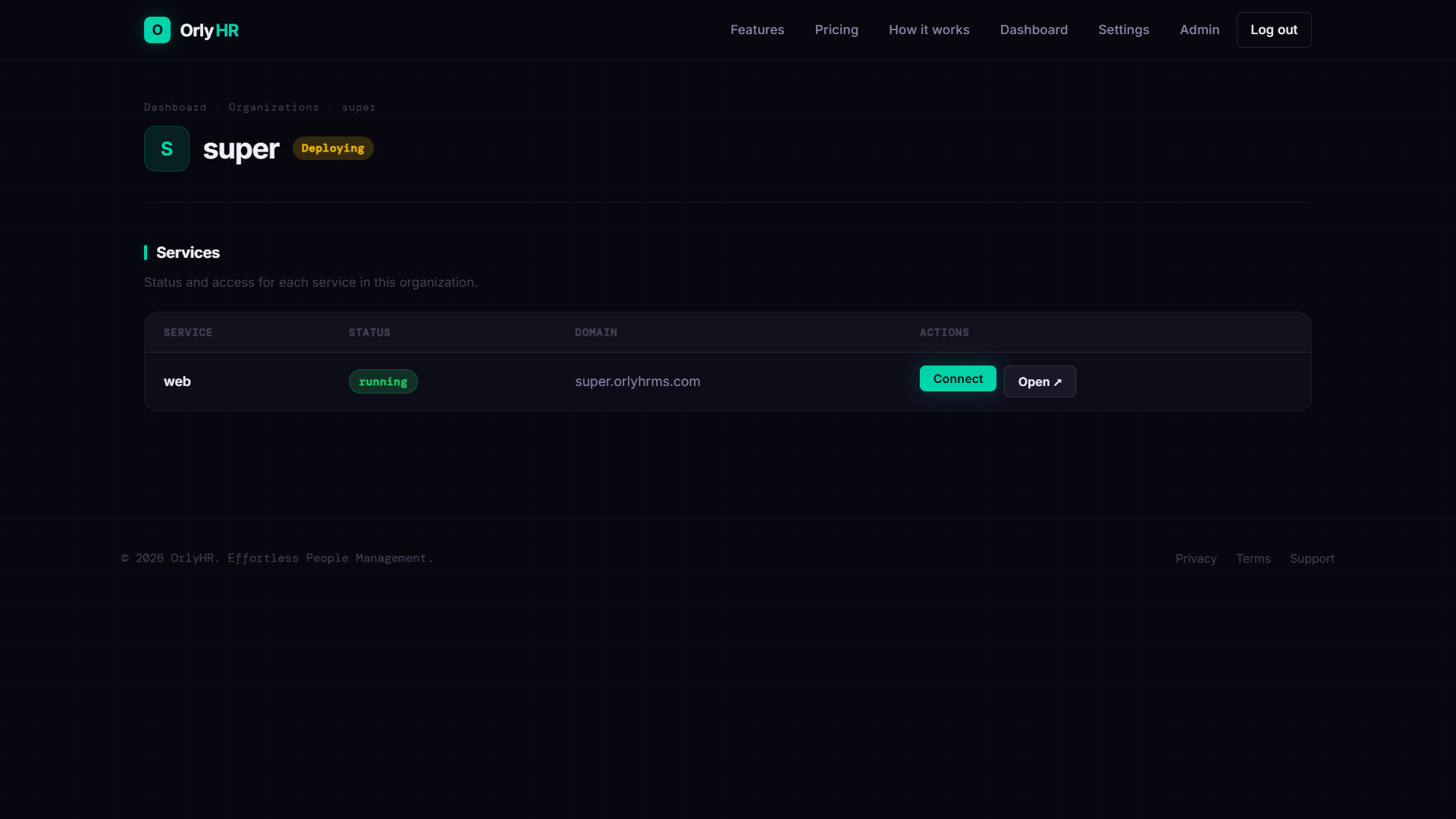
After you click "Start free trial", OrlyHR automatically builds and starts your private HR platform. You'll be taken to your organization's detail page, which shows the services table with a Deploying status. The Actions column will say "Waiting until the access URL responds…" — this is normal. Deployment takes about 1–3 minutes.
Your platform is ready — open it
Once the platform is reachable, the Actions column updates to show two buttons: Connect and Open ↗. Your organization gets its own subdomain (e.g. yourorg.orlyhrms.com). Click Open ↗ to go directly to your HR portal in a new tab.
Choose how to set up your HR platform
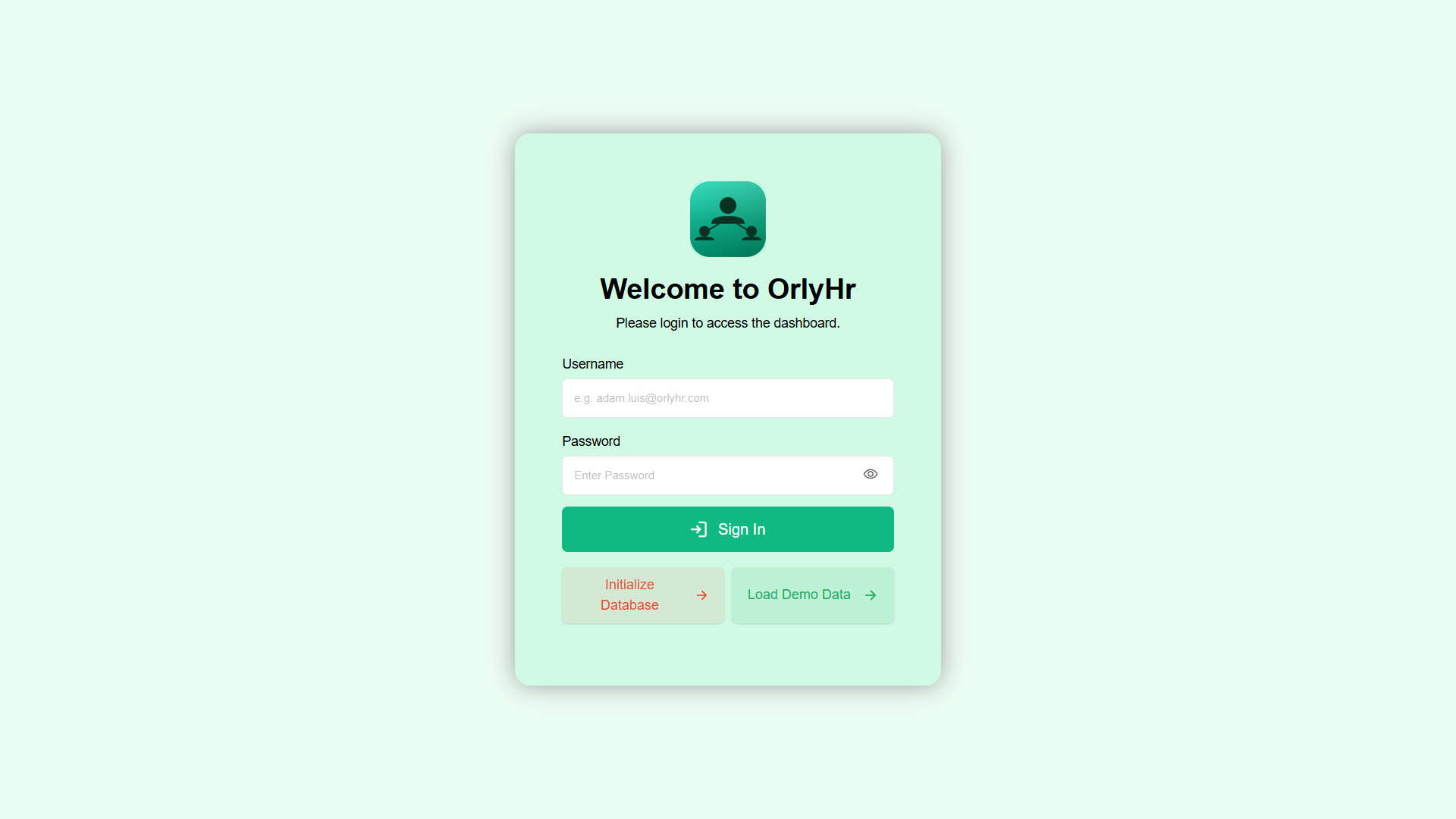
Opening your portal takes you to the Welcome to OrlyHR login page. At the bottom you'll see two setup options. Choose one based on your goal:
Authenticate and complete setup
Both options require a Database Authentication password to protect your database initialization. This is your DB token — find it in your activation email or in your organization settings.
Option A — Initialize Database
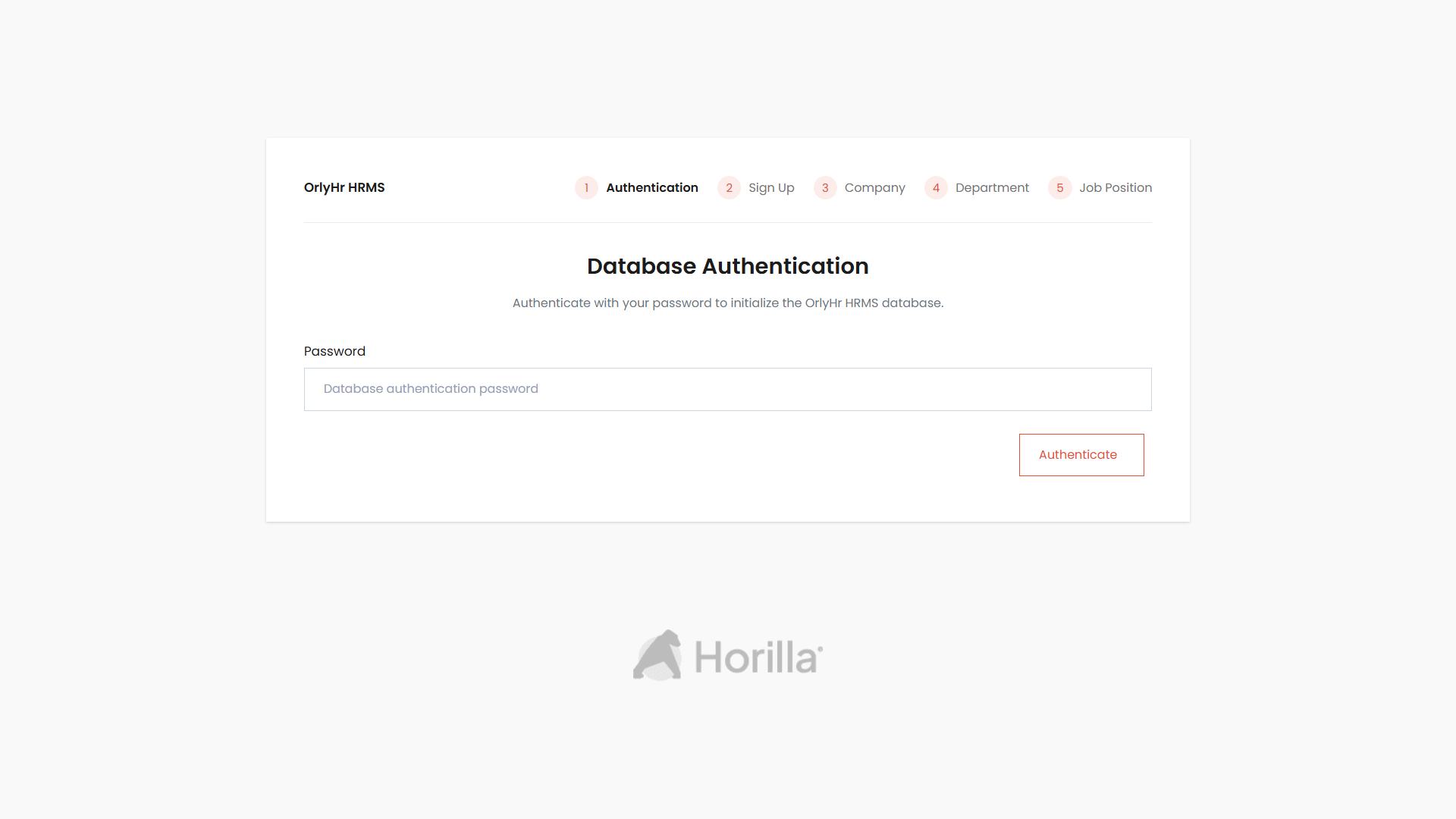
Clicking "Initialize Database" opens a multi-step wizard: Authentication → Sign Up → Company → Department → Job Position. Enter the DB token on the first step, then complete each screen to set up your organization from scratch.
Option B — Load Demo Data
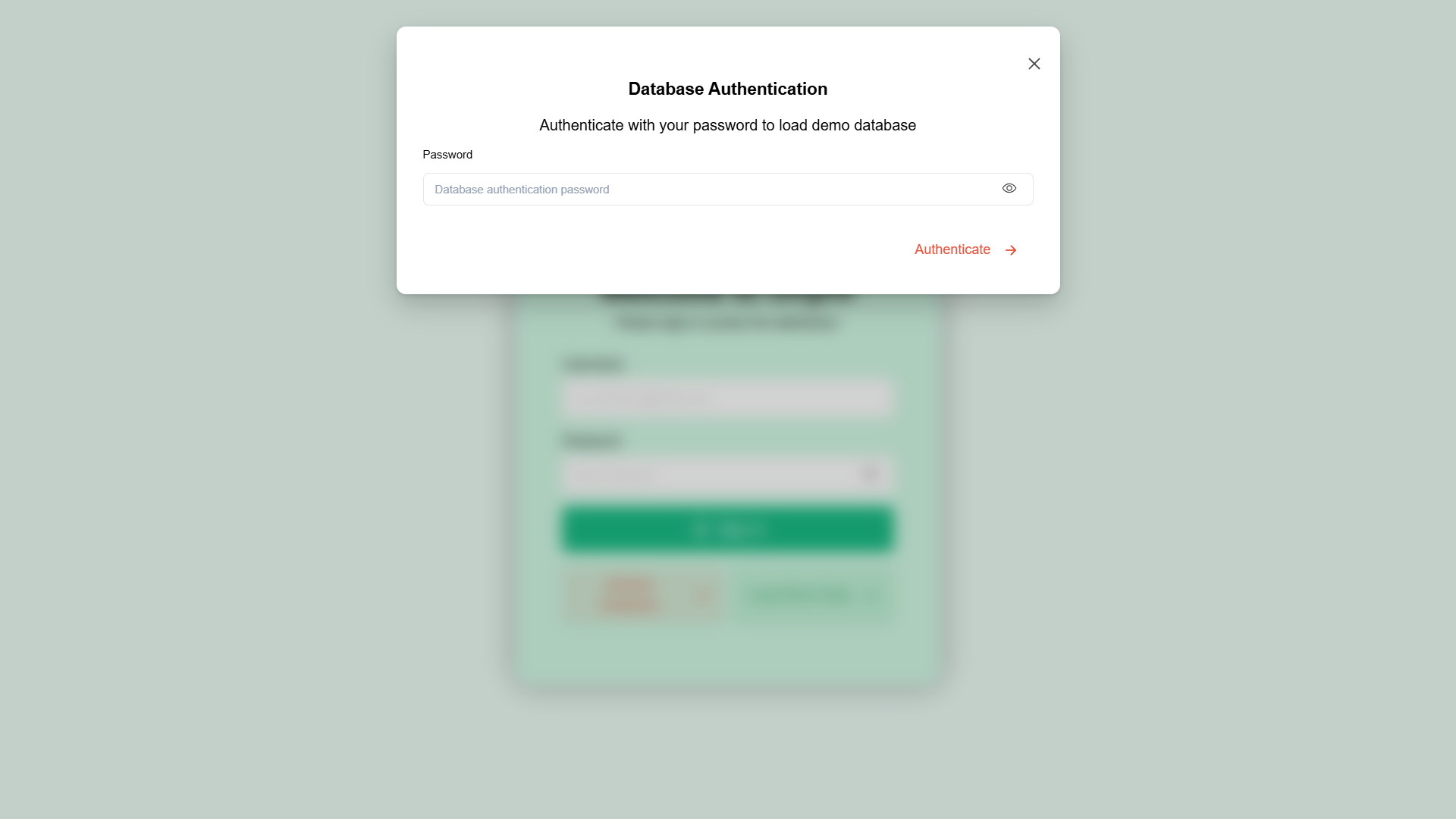
Clicking "Load Demo Data" opens an authentication modal. Enter the DB token and click Authenticate. The platform will then populate itself with sample HR data automatically.
Your DB authentication token
d3f6a1b2c3d4e5f6a7b8c9d0e1f2a3b4c5d6e7f8a9b0c1d
Use this password on the Database Authentication screen above.
Log in and start using OrlyHR
After initialization or demo data is loaded, return to the login page. If you used Load Demo Data, log in with the default credentials below. If you used Initialize Database, use the admin account you created during the wizard.
Demo data — default login credentials
| Username | admin |
| Password | admin |
These are for testing only. Change your password after first login.